How to Automatically Reply to Contact Form Leads With n8n and Gemini
Most website contact forms only notify the business owner that a lead came in. The actual reply the visitor sees gets written by hand, often hours or days later, by which point a real lead has frequently gone quiet or reached out to someone else instead. There is usually no running record either, just a notification email that gets buried in an inbox.
Does this sound like your business?
- Every visitor gets a genuinely personalized reply within seconds, referencing exactly what they described needing automated
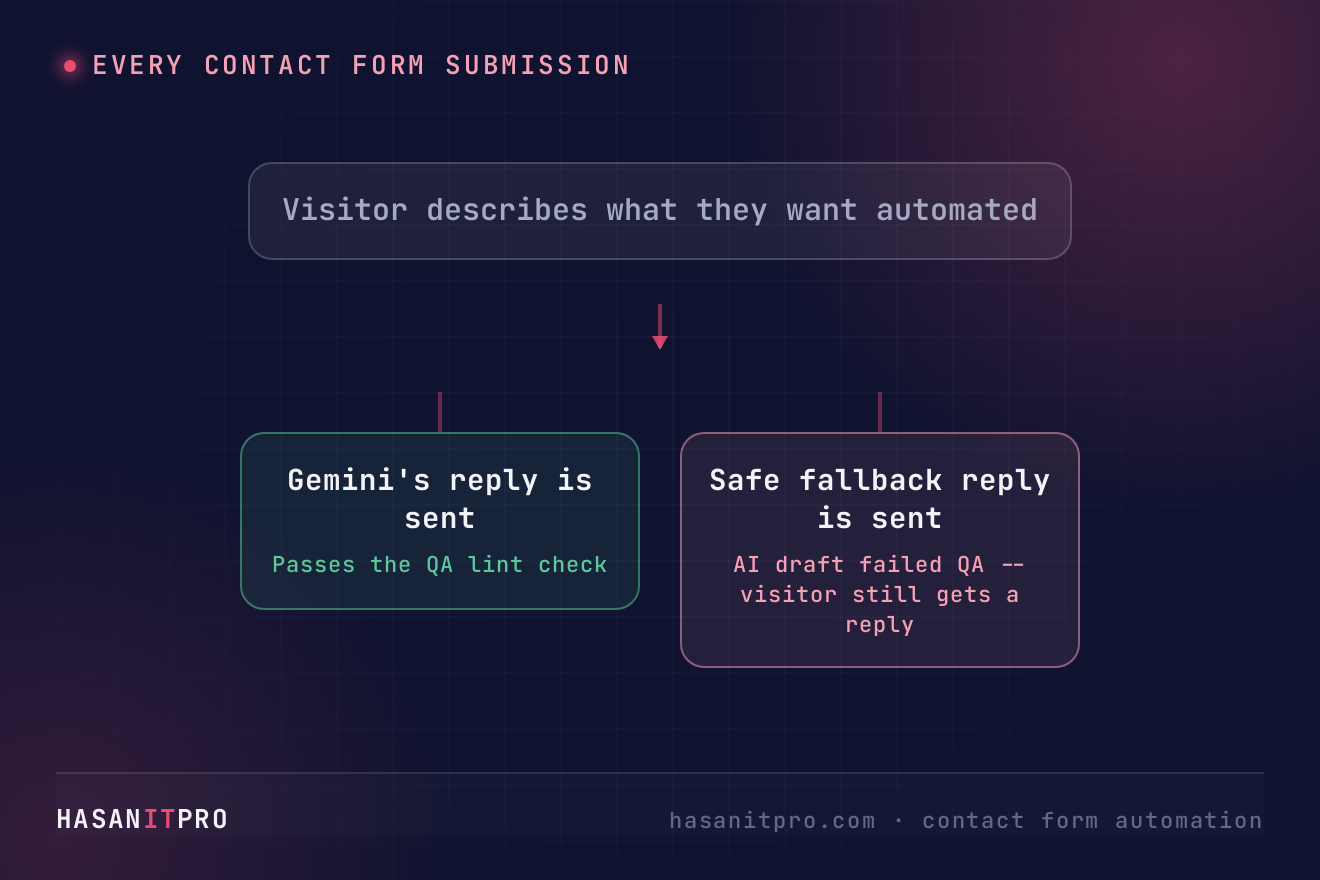
- A safe fallback reply still goes out even if the AI draft fails a quality check, so no visitor is ever left without a response
- Every lead is logged to a running Google Sheet automatically, no manual copy-pasting
- The existing admin notification email keeps working exactly as before, this is purely additive
A contact form on a consulting website usually only does one thing well: it notifies the business owner that someone filled it out. Nobody actually gets to reply to contact form leads in real time by hand, the real reply gets written hours or sometimes days later, and by then a genuine lead has often already moved on. I wired a real n8n workflow into this exact site’s own contact form to reply to contact form leads automatically the moment someone submits, and this is exactly how it works, tested against a genuine submission through the live page, not a simulated one. The real, tested workflow file is free to download near the bottom of this page.
Who Is This For
This workflow is built for consultants, agencies, and small business owners whose contact form’s only real output today is an internal notification email, not an actual reply the visitor ever sees.
It fits anyone who wants every visitor to hear back within seconds, not hours, without writing the same first reply by hand every single time.
What Problem Does This Workflow Solve
- No Real Reply: The visitor submits the form, sees a generic “thanks, got it” message, then hears nothing else until someone gets around to writing back.
- Slow First Response: A form filled out at 9pm sits untouched until the next business day, and a genuinely interested visitor moves on in the meantime.
- No Running Record: Leads live only in an inbox, with no single log anyone can review or filter later.
How to Automatically Reply to Contact Form Leads With n8n and Gemini
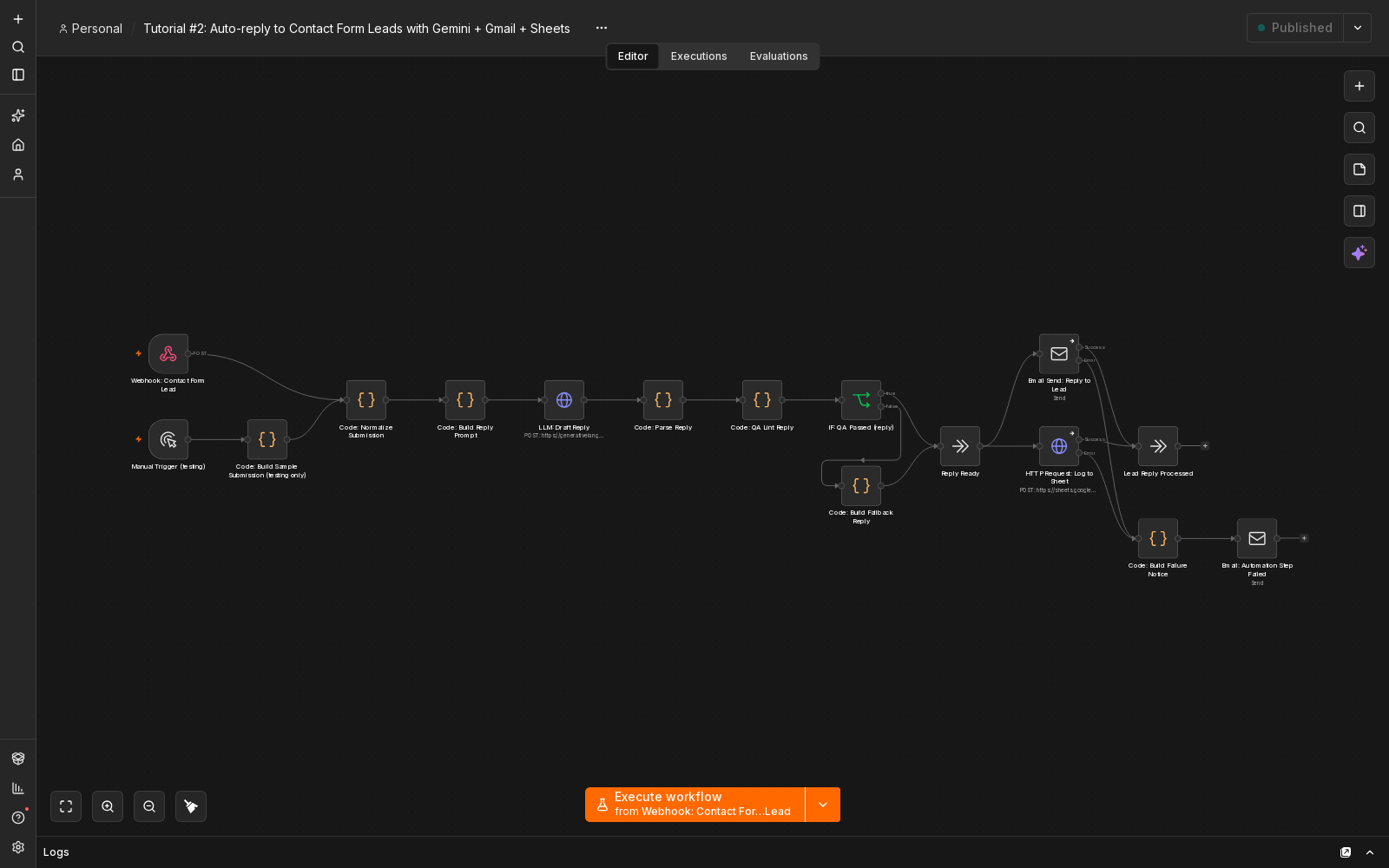
The pipeline has three real stages: normalize whatever the visitor submitted and ask Gemini to draft a genuinely personalized reply, run that draft through a QA lint check and fall back to a safe static reply if it fails, then send the reply and log the lead to a Google Sheet in parallel. Any step that fails still triggers a real internal alert email, using n8n’s own error handling pattern, so a lead is never silently lost. The full breakdown, node by node, is in the six steps further down this page. See my guide to routing new website leads to sales in under a minute for the wider pattern this fits into. This build focuses specifically on the very first reply a lead ever sees, the minutes right after they hit submit. The same instant-reply idea works just as well when leads arrive through Facebook Lead Ads instead of a contact form, see how to qualify Facebook lead ads automatically with n8n.
Setup Guide
Prerequisites
- A website with a contact form you can add a webhook call to
- A Google Gemini API key
- An SMTP or Gmail account to send from
- A Google account with Sheets access
- A hosted instance of n8n (cloud or self-hosted)
Setup Steps
- Download the workflow file near the bottom of this page and import it into your n8n instance.
- Connect your credentials for Gemini, your email account, and Google Sheets.
- Activate the workflow to register the real webhook URL, then copy it into your own form handler.
- Add the webhook call to your form handler, non-blocking, right alongside your existing notification email.
- Test by submitting the real form on your live site, never a hand-typed sample payload.
The Real Bug This Build Actually Caught
n8n’s Email node does not pass through the item it received. It replaces the entire JSON payload with its own SMTP response: accepted addresses, envelope, message ID, and so on. A Google Sheets logging step wired directly after the Email node in a simple chain lost access to the lead’s name, email, and the drafted reply entirely, and failed with a flatly unhelpful “JSON Body field is not valid JSON” error the first time this actually ran against a real submission.
The fix was not to chain the side effects at all. Fan the Email step and the Sheets-logging step out in parallel from one shared node instead, so each one reads the same original data independently rather than whatever the node before it happened to return. This only ever surfaced because a real execution was inspected node by node after a real webhook call, not assumed correct just because the run one layer up reported success.
A second, smaller lesson came from trying to add a WhatsApp internal alert for every lead. The first WhatsApp credential authenticated with a Meta access token that had quietly expired, returning a genuine “the session is invalid because the user logged out” error. A second credential authenticated fine but turned out to belong to a different WhatsApp Business Account than the phone number already in use elsewhere, so Meta rejected the specific phone number ID with a real permissions error. Neither failure was guessed at, both came back as structured error responses straight from Meta’s own Graph API. WhatsApp was dropped from this build rather than left half-working. Email and Sheets logging are both fully verified end-to-end, including through a real submission on the live site, nonce included, not a bare webhook call.
How to Customize This Workflow
- Add your own WhatsApp or Slack alert once you have a credential confirmed to work against the exact phone number or channel ID you actually intend to use, tested with a real send first.
- Swap the QA lint rules for your own banned-word list or tone requirements instead of the ones used here.
- Log to a CRM or Airtable instead of Google Sheets, the same append pattern works against either.
- Change the fallback reply’s copy to match your own brand voice, it only ever sends when the AI draft fails a check.
- Add more fields from your own form into the prompt, a budget or timeline question works the same way the task and tools fields do here.
Related reading: running this on your own server? See how to self-host n8n. To make sure a failed step never goes unnoticed, read how to handle errors in n8n workflows. If Google Sheets keeps asking you to reconnect, here is the permanent fix for a Google credential that keeps needing to be reconnected. Auto-replies acknowledge a lead, but if nobody follows up in person, see how to build a speed to lead alert system with n8n and Groq.
Need Help Customizing?
Connect with me on LinkedIn, or find more real builds on YouTube, Facebook, and Instagram.
Read the six steps in full below, or download the real, tested workflow file to import directly into your own n8n and reply to contact form leads automatically on your own site.
-
1
Wire a Non-Blocking Webhook Into Your Contact Form Handler
- In your form handler (inc/contact-form.php on this site), fire the webhook only after a real submission actually succeeds, right alongside the existing admin notification email, not instead of it.
- Use blocking=>false and a short timeout (1 second) on the outgoing request. See WordPress's own wp_remote_post() reference for the full option list. A slow or dead n8n instance must never make a real visitor's submission fail or even feel slower.
- Send name, email, and whatever else your form collects as plain JSON in the request body.
- This step is exactly why the last step below is a real submission through the live site, not a hand-built payload.
-
2
Normalize the Submission and Draft the Reply With Gemini
- Add a Webhook trigger node and a small Code node that normalizes the incoming fields into one consistent lead object with a timestamp.
- Build a prompt that hands Gemini the visitor's name and exactly what they described wanting automated.
- Ask for a JSON response containing just an email subject and an email body, genuinely personalized, no generic template language.
- Explicitly tell Gemini never to quote a price and never to invent a tool or detail the visitor did not actually mention.
-
3
QA-Lint the Draft and Fall Back Safely If It Fails
- Run the same banned-word and em-dash checks used elsewhere on this site against the drafted subject and body.
- Unlike a social-post QA check that can just stop and wait for a human to fix it, a real visitor is waiting on this reply. Route a failed check to a small Code node that returns a safe, honest static reply instead of blocking anyone.
- Branch on an IF node comparing the error count to zero, true routes to the AI draft, false routes to the fallback.
- Both branches converge back into the same shape before the next step, so nothing downstream needs to know which one actually ran.
-
4
Send the Reply and Log the Lead, in Parallel, Not in a Chain
- Real bug: n8n's Email node replaces the item's JSON with its own SMTP response object. A Sheets-logging node chained directly after it loses access to the lead and reply data entirely.
- Fan both the Email node and the Sheets-append HTTP node out from one shared node instead of chaining them, so each one reads the same original data.
- Append every submission to a Google Sheet regardless of whether the AI reply passed QA, including which source, ai or fallback, was actually sent.
-
5
Handle Failures Without Losing the Lead
- Set onError to "continue using error output" on the Email and Sheets nodes, so one failing step doesn't kill the whole run.
- Route any error output to a small Code node that builds a plain internal alert, then a real email to the business owner naming exactly which lead and which step failed.
- This same path is also where a WhatsApp alert step used to live before being dropped. Two credentials were tried, one had a genuinely expired Meta token, the other authenticated fine but had no access to the specific phone number ID this business already sends from. Both failures showed up as real, structured error responses from Meta's own API, not guesses.
-
6
Test It for Real Before You Trust It
- Fetch the real page and extract a live nonce, then submit through the actual admin-ajax.php endpoint your form posts to, exactly as a browser would, not a hand-built webhook payload.
- Check the actual n8n execution afterward. Confirm the email really sent, and read the Sheet row back to confirm it landed with the right values.
- The parallel fan-out bug from an earlier step only ever surfaced this way. A hand-typed webhook test alone would not have caught n8n silently dropping the lead data after the email step.
This is the real, tested n8n workflow from this tutorial, not a mockup. Tell me where to send it and it'll land in your inbox as a ready-to-import .json file.
Does this sound like your business?