How to Build an AI Voice Callback Agent With n8n and Retell AI
Leads sit in a spreadsheet waiting for someone to remember to call them back, and when a call does happen, nothing records whether it connected, what was said, or what happens next. This workflow places the callback itself and logs the real outcome, so no lead waits on a person's memory and no completed call goes unrecorded.
Does this sound like your business?
- No lead waits on someone remembering to call them back
- Every completed call logs its real outcome, summary, and transcript automatically
- A bad phone number or a failed call never gets silently dropped
- Built on the exact platform (Retell AI) real search traffic already shows people comparing for this use case
A lead fills out a form, lands in a spreadsheet, and sits there until someone remembers to call them back. This AI voice callback agent closes that gap: it watches a Google Sheet for new leads, places a real outbound call through Retell AI’s voice platform, and once the call ends, writes the outcome, a summary, and the full transcript back to the same row. No one has to remember to dial, and no completed call goes unlogged. The real, tested workflow file is free to download near the bottom of this page.
Who Is This For
This build is for anyone whose leads come in faster than they get called: sales teams, agencies running paid lead gen, and service businesses where a slow callback is a lost job.
What Problem Does This Workflow Solve
- Callbacks Depend on Someone Remembering: A lead sitting in a spreadsheet only gets called when a person happens to check it, which is never as often as leads actually arrive.
- Nobody Logs What Happened: A call made from a personal phone leaves no record of whether the lead answered, what was said, or what to do next.
- Comparing Voice AI Platforms Doesn’t Answer “How Do I Actually Build This”: There is plenty written about which voice AI platform to pick. Almost none of it shows the actual workflow behind one.
How to Build an AI Voice Callback Agent With n8n and Retell AI
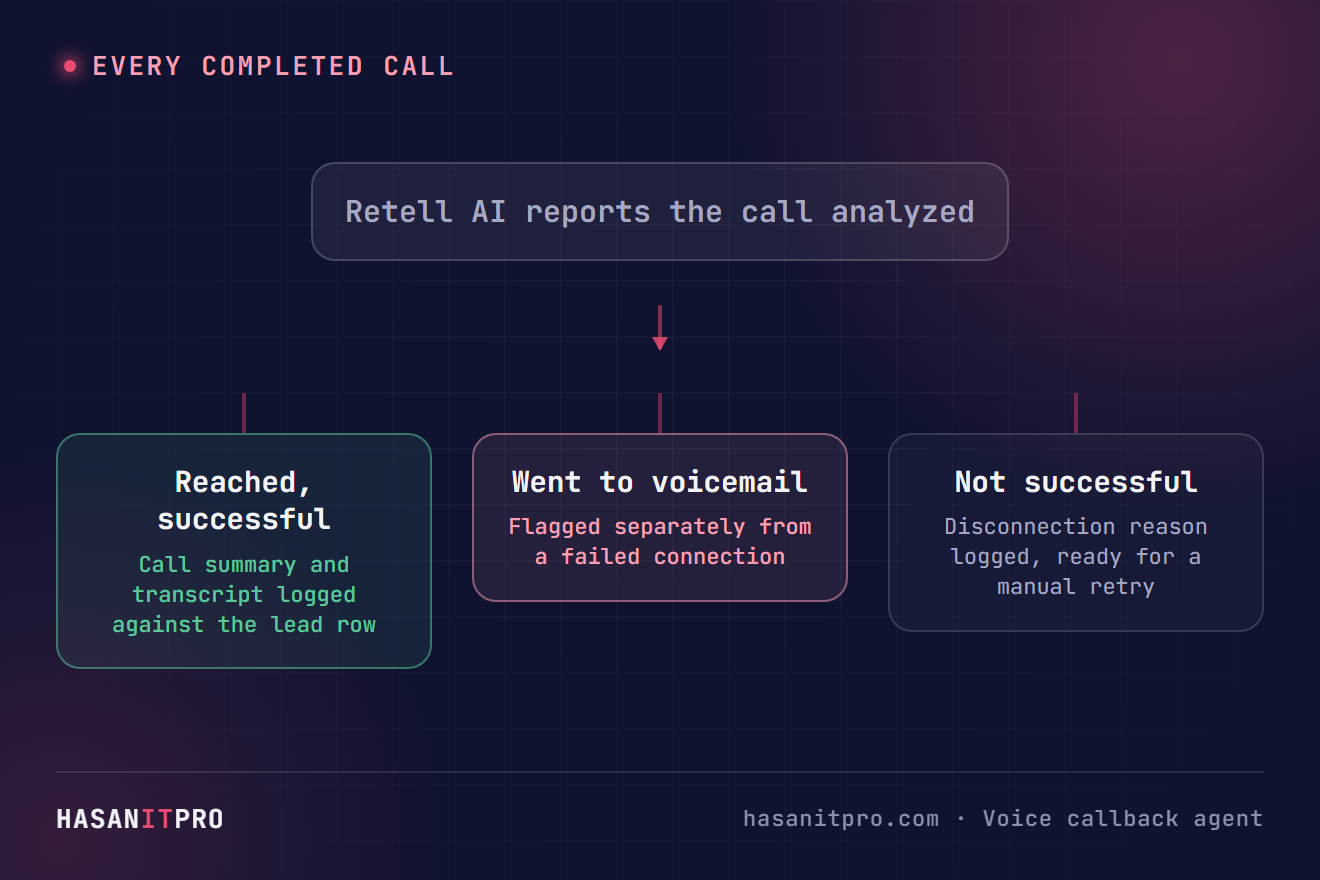
A Schedule Trigger checks a Voice Callback Leads tab in Google Sheets every five minutes for rows with a phone number and a blank or “To Call” status. A Code node normalizes the number to E.164, and a real HTTP request to Retell AI’s create-phone-call endpoint places the call, passing the lead’s name in as a variable the agent’s script can use. The row is marked “Calling” with Retell’s own call ID. Separately, a webhook listens for Retell’s own completion event: once a call is analyzed, the workflow matches it back to its row by that call ID and writes whether the lead was reached, went to voicemail, or the call failed, along with Retell’s summary, transcript, and sentiment reading. If I had already compared voice AI platforms for this exact use case, in my Retell AI vs Vapi vs Bland AI comparison, and outbound sales calling kept coming up as the real reason people were choosing between them, this is what actually building one of them looks like.
Why Nothing Gets Called Twice, and Nothing Gets Lost if Retell Can’t Match a Call
A lead is only picked up if its Status column is empty or exactly “To Call”, so a lead already marked Calling, Done, or Invalid Phone is skipped on every later run. A phone number that cannot be normalized to a real 10-digit US or Canadian number is marked Invalid Phone and never attempted. If the call request itself fails, the lead’s status is left untouched on purpose: it gets picked up and tried again on the next run, instead of silently stopping forever. And if Retell’s completion webhook ever reports a call whose ID does not match any row, a real alert email goes out instead of that outcome being dropped.
What’s Actually Been Verified, and What You’ll Do Yourself
I built this against a live n8n instance and ran it for real, not just wrote it and assumed it works. The full call-completion branch was tested with a real webhook event carrying Retell’s documented field names: it matched against the live sheet correctly, and when no row matched, it genuinely sent the unmatched-call alert email. The outbound branch was tested with a seeded test lead: the phone number 555-123-4567 normalized correctly to +15551234567, passed validation, and the workflow made a real request to Retell’s live API, which rejected it with a real invalid-key error, since the credential at that point still held a placeholder. That is exactly what you would see too, right up until you add your own key. The one thing I could not test from here is a call actually connecting, because that needs a real Retell AI account with a real phone number tied to it, which only you can set up. Once you do, this AI voice callback agent’s architecture is already proven: you’re just supplying the account it calls through.
Setup Guide
Prerequisites
- A Retell AI account with a phone number purchased or imported and assigned to a voice agent ($10 in free trial credit as of this writing, roughly 70+ minutes of calls)
- A Google account with Sheets access, connected through OAuth or a service account
- An SMTP email credential for failure and unmatched-call alerts
- A hosted instance of n8n, cloud or self-hosted, reachable from the public internet so Retell can reach its webhook
Setup Steps
- Download the workflow file near the bottom of this page and import it into your n8n instance.
- Connect your credentials for Google Sheets and SMTP, and create a new Header Auth credential for Retell AI with
Authorizationset toBearerfollowed by your real API key. - Create the Voice Callback Leads tab with these columns: Name, Phone, Status, Call ID, Call Time, Outcome, Summary, Transcript.
- Open the Config node and replace the placeholder with your real Retell phone number, in E.164 format.
- Set the webhook URL in your Retell agent’s own settings to this workflow’s call-ended webhook, so completed calls report back here.
- Add one real lead with your own phone number as a first test, and run the workflow manually.
- Check the sheet after the call ends to confirm the row updated with the real outcome, summary, and transcript.
- Add your real leads and activate the workflow. It is exported inactive on purpose.
How to Customize This Workflow
- Add a calling-hours check before the call goes out, the same pattern used in my speed to lead alert workflow, so leads are never called outside business hours.
- Route by outcome: a “Not successful” result could trigger a text message instead, or a second attempt the next day.
- Swap Google Sheets for a real CRM, so a new lead starts the call automatically instead of waiting on the next five-minute tick.
- Log custom data points using Retell’s post-call analysis schema, pulled through
custom_analysis_data, for anything specific to your own script.
One known simplification: phone normalization only handles US and Canadian 10-digit numbers for now.
Related reading: if you’re still deciding which voice AI platform to build on, see my Retell AI vs Vapi vs Bland AI comparison.
Need Help Customizing?
Connect with me on LinkedIn, or find more real builds on YouTube, Facebook, and Instagram.
Read the eight steps in full below, or download the real, tested workflow file to import directly into your own n8n and put your lead callbacks on autopilot.
-
1
Pick up new leads on a schedule
A Schedule Trigger (plus a Manual Trigger for testing) reads the Voice Callback Leads tab every 5 minutes. A Code node keeps only rows with a phone number and a Status that is blank or exactly "To Call".
-
2
Normalize the phone number
A Code node converts whatever format the number is in to E.164 (US/Canada, 10 digits, optional leading 1). A number that cannot be normalized is routed to the invalid-phone branch and marked accordingly instead of being attempted.
-
3
Place the real outbound call
An HTTP Request node calls Retell AI's POST /v2/create-phone-call with your configured from-number, the lead's normalized number, and the lead's name passed in as a dynamic variable the agent can reference. The row is marked "Calling" with Retell's own call ID, so it is never picked up again while in progress.
-
4
Handle a failed call request without losing the lead
If the request to Retell fails, for example an invalid API key or a rate limit, the lead's Status is deliberately left untouched so the next scheduled run retries it, and a real failure email goes out with the lead's details and the actual error.
-
5
Receive the call-completion webhook
A separate Webhook node listens for Retell's call_analyzed event, the one that carries the full call_analysis object: summary, whether the call was successful, whether it went to voicemail, and Retell's own sentiment reading.
-
6
Match the completed call back to its lead row
The workflow reads the sheet again and finds the row whose Call ID matches the one in the webhook payload. If nothing matches, for example the row was edited or deleted after the call was placed, a real alert email goes out instead of the outcome being silently dropped.
-
7
Log the real outcome
The matched row is updated with the outcome (reached and successful, went to voicemail, or not successful with the real disconnection reason), Retell's call summary, and the full transcript, all in one write.
-
8
Test before activating
Run the workflow manually against one real lead with your own phone number first. Confirm the row moves from blank to Calling to a real logged outcome before adding your actual leads and switching the workflow on.
This is the real, tested n8n workflow from this tutorial, not a mockup. Tell me where to send it and it'll land in your inbox as a ready-to-import .json file.
Does this sound like your business?