How to Build an Automated Missed Call Text Back System With n8n and Twilio
Connect Twilio voice status callbacks to an n8n webhook node. Use an IF node in n8n to check if the call status is no-answer or busy, then trigger an automated Twilio SMS node to text the caller back immediately.
Does this sound like your business?
When a prospective customer calls your business, they want quick answers. If you miss that call, they will often dial your top competitor immediately. Setting up an automated missed call text back system ensures every caller gets an instant SMS response the moment a call goes unanswered. This simple setup turns lost phone calls into active SMS conversations and helps you capture leads before they look elsewhere.
Service businesses rely heavily on phone inquiries. Whether you run a plumbing service, a law firm, or a home repair agency, missing a phone call usually means losing money. Many business owners rely on standard voicemail. However, modern buyers rarely leave voicemails. They prefer texting or instant messaging because it fits their busy schedules. If you are debating between a phone setup and an interactive agent, review our guide on AI voice agent vs answering service to see which strategy suits your call volume best.
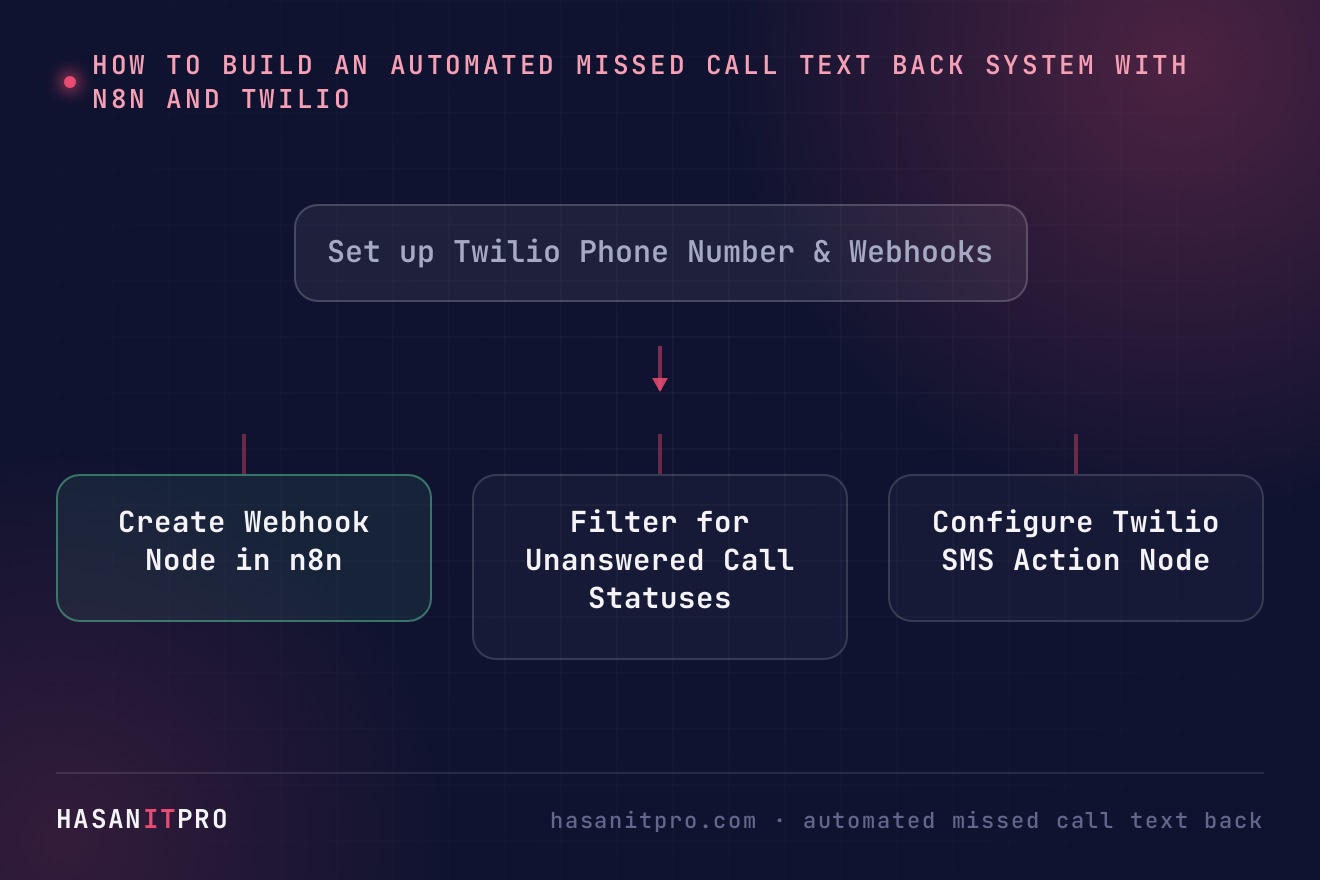
Why You Need an Automated Missed Call Text Back Workflow
An automated missed call text back system works as your instant response unit. The moment Twilio detects an unanswered incoming call, it triggers an n8n workflow. n8n then evaluates the call status and sends an automated SMS to the caller. This keeps the lead engaged and gives them a direct way to share their request without waiting on hold.
To build this automation, you need three core components:
- A Twilio account with an active phone number capable of voice and SMS.
- An n8n instance running on a cloud or self-hosted server.
- Webhook endpoints configured to route voice status updates.
Step 1: Configure Your Twilio Webhook
Log into your Twilio Console and navigate to your active phone number. Under the Voice configuration section, set the incoming call behavior to HTTP POST pointing to your n8n Webhook node URL. You must also configure the Status Callback URL. According to the official Twilio Voice API documentation, Twilio sends event parameters like CallStatus, From, and To whenever a call state changes. You specifically want to monitor for statuses like no-answer, busy, or canceled.
Step 2: Build the n8n Workflow Trigger
In n8n, create a new workflow and add a Webhook trigger node. Set the HTTP method to POST and copy the production URL into Twilio’s Status Callback settings. Make sure to test the webhook by making a test call to your Twilio number and letting it ring until it ends without an answer. n8n will capture the payload sent by Twilio.
Step 3: Filter for Missed Calls with an IF Node
Twilio sends webhooks for completed calls as well as unanswered calls. To avoid texting clients who successfully spoke with your staff, add an IF node in n8n. Set the condition to check if the CallStatus field equals no-answer or busy. Only calls that match these criteria should proceed down the success branch.
Step 4: Format Phone Numbers and Message Content
Phone numbers coming from Twilio usually include standard E.164 formatting. Pass the caller’s phone number into a Twilio node in n8n configured for sending SMS messages. Keep your text message concise and direct. For example: “Hi! Thanks for calling our office. We missed your call, but we are here to help. How can we assist you today?”
Step 5: Add Error Handling and Logging
Automations can occasionally encounter issues, such as rate limits or invalid phone numbers. Adding error catching prevents silent failures. If you want to build a resilient workflow that alerts your team whenever a step fails, check out our guide on n8n error handling.
Conclusion
Never let an unanswered phone call turn into a lost revenue opportunity. By setting up an automated missed call text back with n8n and Twilio, you bridge the gap between phone calls and immediate customer service. It takes less than an hour to set up, but it pays dividends by securing leads that would otherwise call your competitors.
Related reading: Once a lead is in, make sure someone actually answers it: see how to build a speed to lead alert system with n8n and Groq.
-
1
Set up Twilio Phone Number & Webhooks
In your Twilio Console, select your active phone number. Configure the primary Voice webhook and Status Callback URL to point to your n8n webhook endpoint.
-
2
Create Webhook Node in n8n
Add a Webhook trigger node in n8n listening for POST requests. Receive incoming status callbacks from Twilio containing call details like CallStatus and From number.
-
3
Filter for Unanswered Call Statuses
Add an IF node in n8n to filter incoming webhook events. Only route executions where CallStatus equals 'no-answer', 'busy', or 'canceled'.
-
4
Configure Twilio SMS Action Node
Add a Twilio node configured to send an SMS. Set the 'To' field to the caller's phone number and enter a friendly text message offering immediate help via SMS.
-
5
Test and Activate the Workflow
Trigger a test missed call to confirm n8n receives the callback and sends the text back automatically. Once confirmed, activate the n8n workflow for live production.
Does this sound like your business?