How to Qualify Facebook Lead Ads Automatically With n8n and Gemini
Facebook Lead Ads generate submissions faster than most small teams can read them. Every lead sits in the same notification feed regardless of whether they are ready to buy today or just clicked out of curiosity, so someone has to manually read each one, decide if it is worth chasing, and write back before the lead moves on or forgets they filled out the form.
Does this sound like your business?
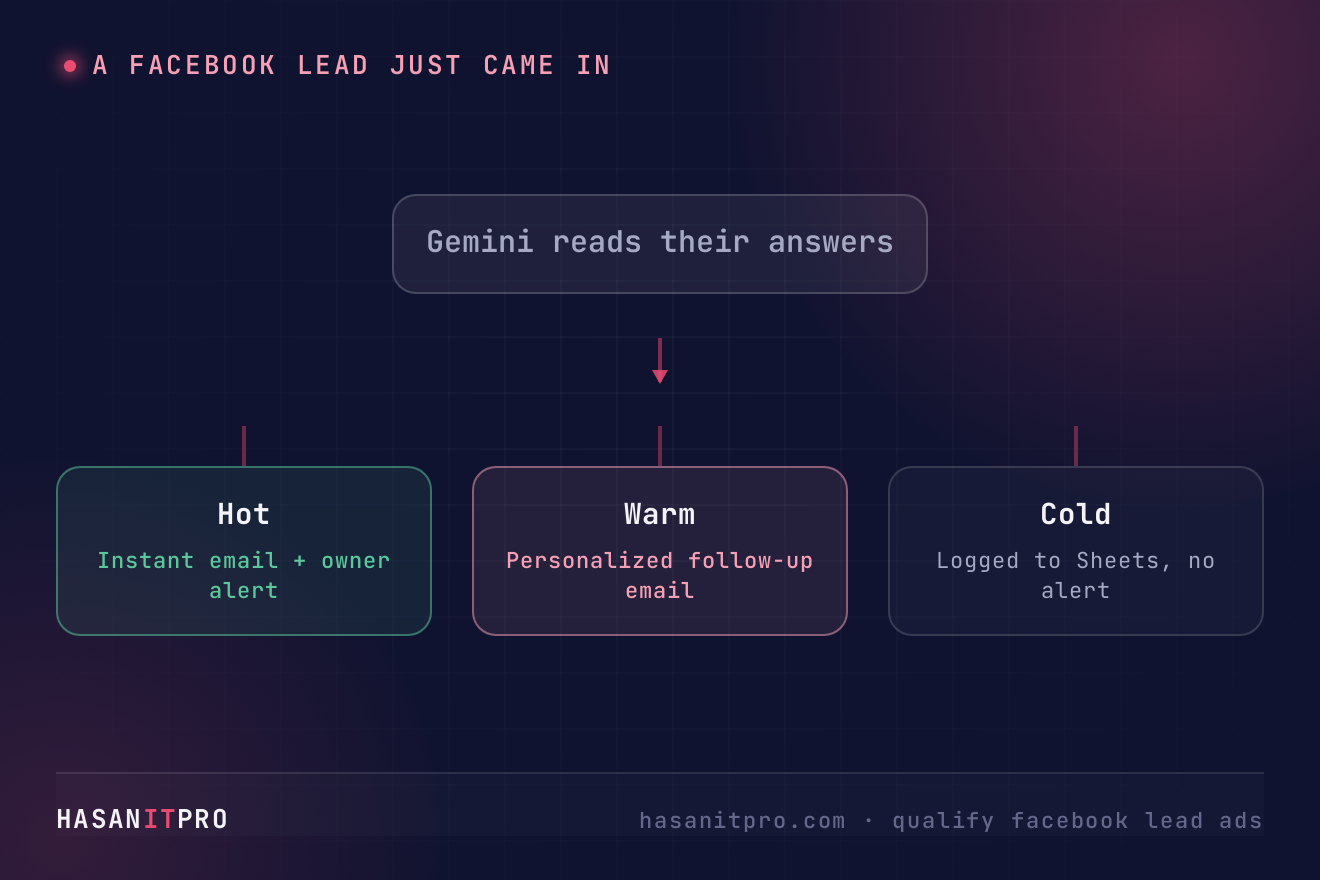
- Every lead gets scored Hot, Warm, or Cold the moment they submit, with no manual reading required
- Hot leads trigger an internal alert immediately, so a good lead never sits unread
- Every lead gets a genuinely personalized follow-up email within seconds, referencing what they actually asked for
- One running log in Google Sheets replaces scattered notifications and copy-pasted spreadsheets
A Facebook Lead Ad can produce ten submissions on a slow day and eighty on a good one, and every single one still needs a person to read the answers, decide whether it is worth chasing, and reply before the lead forgets they ever filled out the form. I built a real n8n workflow to qualify Facebook lead ads automatically the moment someone submits, and this is exactly how it works, tested against genuine submissions through a real Facebook form, not a hypothetical one. The real, tested workflow file is free to download near the bottom of this page.
Who Is This For
This workflow is built for small business owners, solo consultants, and marketing teams running Facebook Lead Ads who are tired of manually triaging every submission that comes in.
It fits anyone who wants every lead qualified and replied to within seconds, not hours, without hiring someone whose whole job is reading a notification feed.
What Problem Does This Workflow Solve
- Inconsistent Lead Triage: Every lead gets the exact same generic attention regardless of how ready they actually are to buy.
- Slow Follow-Up: A lead that arrives at 9pm waits until morning, and a competitor’s reply does not.
- No Central Record: Leads scattered across notifications and inboxes with no single running log anyone can review later.
How to Qualify Facebook Lead Ads With n8n and Gemini
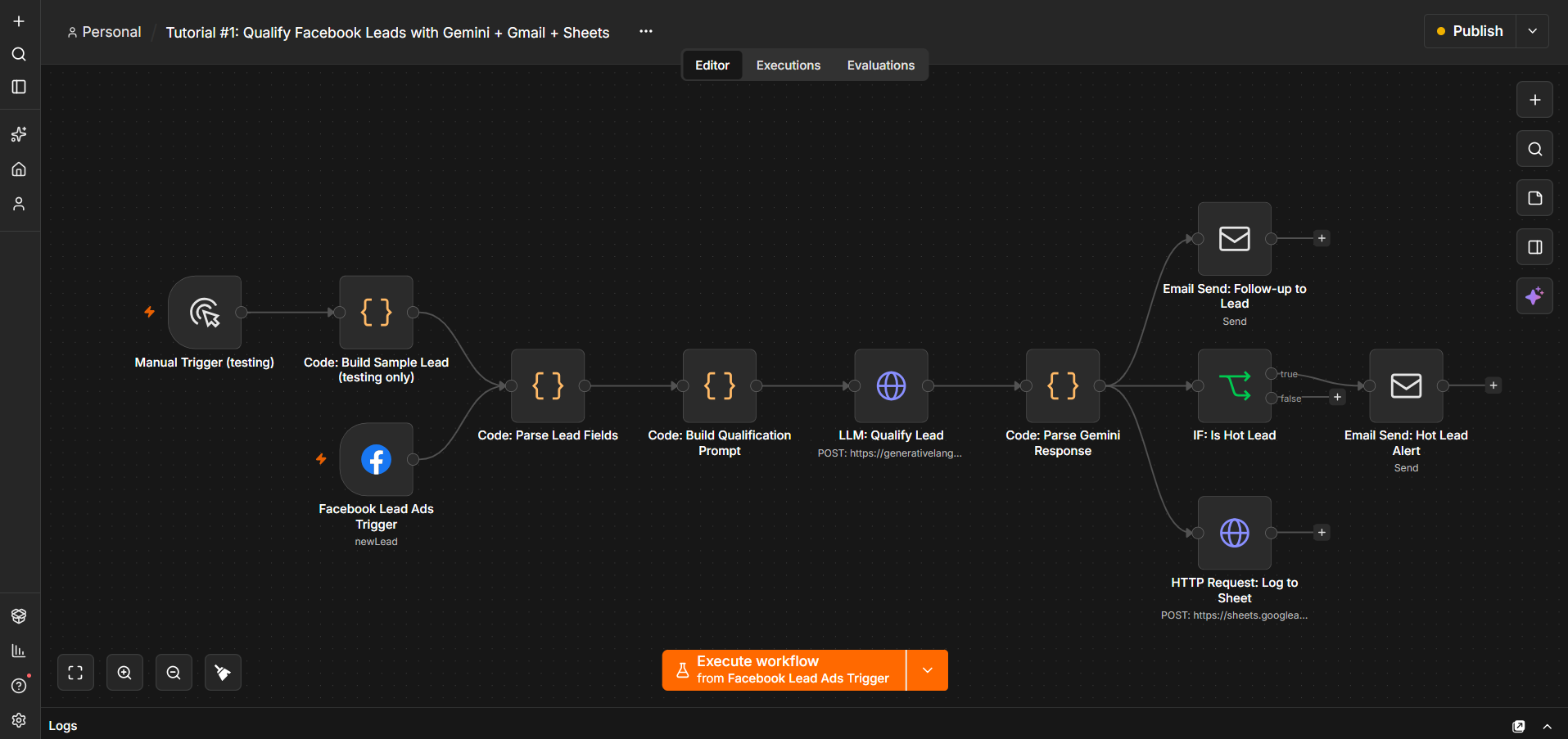
The pipeline has four real stages: parse the lead’s answers into clean data, ask Gemini to classify the lead as Hot, Warm or Cold with reasoning, send a genuinely personalized follow-up email to the lead directly, and log every submission to a Google Sheet regardless of tier. Hot leads also trigger a separate internal alert email, so a good lead never sits unread. The full breakdown, node by node, is in the six steps further down this page. If you have not picked a workflow automation tool yet, see my comparison of n8n vs Zapier vs Make first, this build uses n8n specifically because it can run arbitrary code between steps, which reliably parsing Facebook’s own field names actually needs.
Setup Guide
Prerequisites
- A Facebook Page with Lead Ads access
- A Facebook Developer App with the Lead Ads product added
- A Google Gemini API key
- An SMTP or Gmail account to send from
- A Google account with Sheets access
- A hosted instance of n8n (cloud or self-hosted)
Setup Steps
- Download the workflow file near the bottom of this page and import it into your n8n instance.
- Connect your credentials for Facebook Lead Ads, Gemini, your email account, and Google Sheets.
- Update the Page ID, Form ID, and Spreadsheet ID in the relevant nodes to match your own setup.
- Test by submitting a real test lead through Meta’s own Lead Ads Testing Tool, never a hand-typed sample.
- Activate the workflow to register the real webhook subscription and make it live.
Two Real Bugs This Build Actually Caught
The first is about Facebook’s own field names. Every custom question on a Lead Gen Form gets auto-slugified into a field name based on its exact wording, apostrophes, slashes and question marks included, so a question like “What’s your monthly budget for automation/tools?” becomes a field named accordingly. Hardcoding an exact field name to match against will work in testing and then quietly break the moment the real form’s wording differs even slightly. Fuzzy keyword matching against each field’s name is what actually survives contact with a real, live form.
The second lesson came from that same fuzzy matching being too broad. A keyword search for “need” that also allowed “automat” as a fallback ended up matching the budget question first, since a question about “automation tools” also contains the substring “automat”. The fix was narrowing the match, not widening it. Both bugs only surfaced once a real Facebook test lead ran through the workflow, which is exactly why the last of the six steps below is a real submission, never a simulated one. See Meta’s own Lead Ads guide for the full field reference this workflow parses against.
How to Customize This Workflow
- Change the qualification rubric to match your own pricing and sales cycle instead of the budget/timeline example used here.
- Swap the email step for a real CRM’s own sending API if you already run one, instead of plain SMTP.
- Add a Slack or WhatsApp alert instead of, or alongside, the internal email sent for Hot leads.
- Log to a CRM or Airtable instead of Google Sheets, the same append pattern works against either.
- Add more qualifying questions to the Lead Gen Form itself, the fuzzy field-matching approach handles new questions without any code changes, as long as each keyword stays distinctive.
Related reading: running this on your own server? See how to self-host n8n. To make sure a failed step never goes unnoticed, read how to handle errors in n8n workflows. If Google Sheets keeps asking you to reconnect, here is the permanent fix for a Google credential that keeps needing to be reconnected. If a lead ad enquiry sits unanswered, see how to build a speed to lead alert system with n8n and Groq.
Need Help Customizing?
Connect with me on LinkedIn, or find more real builds on YouTube, Facebook, and Instagram.
Read the six steps in full below, or download the real, tested workflow file to import directly into your own n8n and qualify Facebook lead ads on your own Page.
-
1
Create the Lead Gen Form in Meta’s Forms Library
- Go to your Facebook Page in Meta Business Suite, then All tools -> Advertise your business -> Instant Forms -> Create.
- Add the standard fields (full name, email, phone) plus your own qualifying questions, for example a budget range, a timeline, and what they want automated.
- Use multiple choice questions, not free text. The qualification step later needs to reason about a small, predictable set of answers.
- Leave the form unpublished while you build. Meta's own Lead Ads Testing Tool can submit real test leads through an unpublished form, no live ad required.
-
2
Connect n8n to Facebook and Understand the Page Access Token
- Create a Facebook Developer App, add the Lead Ads product, and connect n8n's built-in Facebook Lead Ads credential to it.
- Real gotcha: this credential authenticates as your Facebook user, not the Page. Some Graph API calls (including listing which forms exist) specifically require a Page Access Token instead, or they fail with a permissions error even though the credential is valid.
- Exchange your user token for one via GET /me/accounts using this same credential. It returns every Page you manage along with its own access_token.
- The trigger node manages its own permissions internally, so you only need this exchange if you want to look something up directly through the API instead of the Forms Library UI.
-
3
Add the Trigger and Parse the Lead’s Answers Reliably
- Add n8n's Facebook Lead Ads Trigger node, pick your Page and the form you created, and activate the workflow. Activating is what registers the real webhook subscription with Facebook, nothing arrives before that.
- A real submission arrives as a field_data array of {name, values} pairs.
- Facebook auto-generates each custom question's field name as a slug of its exact wording, apostrophes, slashes and question marks included. Do not hardcode exact field names expecting clean underscored slugs.
- Write a small Code node that fuzzy-matches a keyword inside each key instead (budget, soon, need), so the workflow survives however Facebook actually slugs your specific questions.
-
4
Qualify the Lead with Gemini
- Build a prompt that hands Gemini the lead's stated budget, timeline and need.
- Include a clear qualification rubric, for example Hot needs both a high budget and a short timeline, Cold needs both a low budget and no real urgency, everything else is Warm.
- Ask for a JSON response containing a tier, a one or two sentence reasoning, and a fully drafted, genuinely personalized follow-up email.
- A rubric keeps the tier classification consistent and explainable, while still letting Gemini use real judgment on the edge cases a rigid lookup table would get wrong.
-
5
Send the Follow-Up, Alert on Hot Leads, and Log Every Lead
- Send the drafted email via an SMTP node addressed to the lead directly.
- Branch on the tier with an IF node, and fire a separate internal alert email only when a lead comes back Hot, so a genuinely good lead never sits unread.
- Watch for two easy misses: n8n’s Email node appends "This email was sent automatically with n8n" to every message by default, and the From address shows whatever is before the @ sign unless you explicitly set a display name like "Your Business Name <you@yourdomain.com>".
- Append every lead, regardless of tier, to a Google Sheet as a permanent record you can filter and review later.
-
6
Test It for Real Before You Trust It
- Use Meta's Lead Ads Testing Tool to submit a genuine test lead through your form. This fires the exact same webhook Facebook sends for a real submission, not a simulation.
- Check the actual execution in n8n afterward, not just whether it reports success.
- Read the parsed fields, the tier Gemini picked and why, and confirm the email really arrived in a real inbox.
- The field-name bug from step 3 only ever surfaced once a real test lead ran through this workflow. A hand-typed sample payload never would have caught it.
This is the real, tested n8n workflow from this tutorial, not a mockup. Tell me where to send it and it'll land in your inbox as a ready-to-import .json file.
Does this sound like your business?