Why a google credential needs to be reconnected in n8n (And the Permanent Fix)
When an n8n Google credential expires every 7 days, it is because your Google Cloud project OAuth consent screen is set to Testing status. Google automatically invalidates refresh tokens after 7 days for test projects. Publishing your OAuth consent screen to Production permanently fixes this issue.
Does this sound like your business?
If you run automated workflows using Google Sheets, Gmail, or Google Drive, nothing breaks operations faster than a disconnected credential. You build a smooth workflow, only to find it failing days later because your google credential needs to be reconnected in n8n. This issue leaves business processes stalled and leads to missed notifications or delayed data syncing. Fortunately, this is not an n8n bug. It is a security feature enforced by Google when your API project configuration is incomplete. In this guide, we will cover why this happens and how to fix it for good.
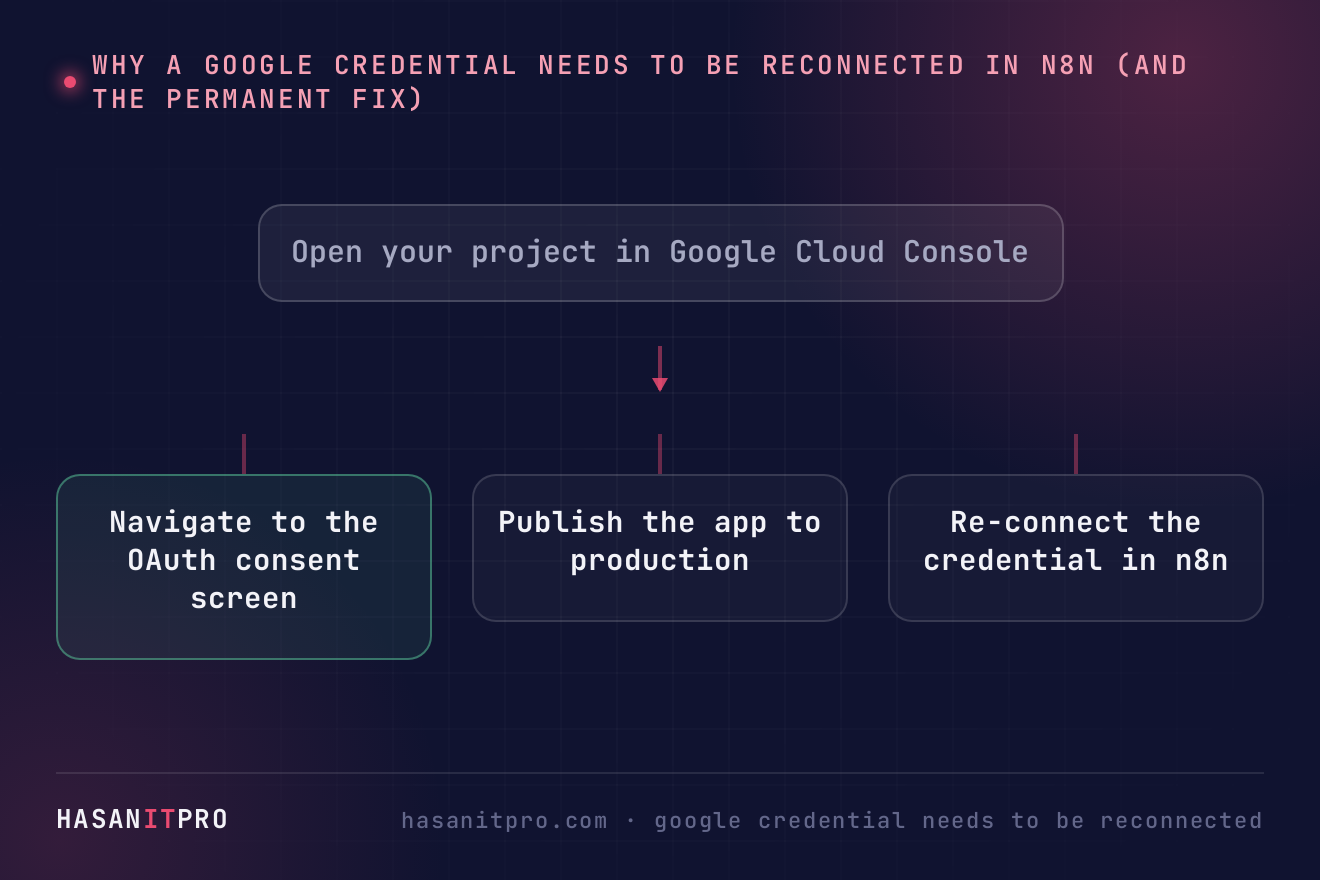
Why Your google credential needs to be reconnected
Google OAuth 2.0 credentials rely on refresh tokens to issue new short-lived access tokens automatically. In normal operation, n8n uses a refresh token behind the scenes so you never have to sign in manually after the initial authorization. However, Google enforces strict policies on OAuth consent screens that directly impact token lifespan.
When your google credential needs to be reconnected, the underlying cause is almost always your Google Cloud project’s publishing status. When you create a new OAuth app in the Google Cloud Console, Google defaults the publishing status to Testing. For testing applications, Google refresh tokens are set to expire after exactly 7 days.
There are three primary reasons your token might expire unexpectedly:
- Testing Mode Limit: Google Cloud projects in the Testing phase invalidate refresh tokens after 7 days, forcing re-authentication.
- Password Changes: Changing the password for the Google account that authorized n8n revokes all active OAuth refresh tokens.
- 6-Month Inactivity: If an n8n workflow using the Google credential does not run for 6 months, Google automatically expires the token.
Step-by-Step Fix: Publish Your OAuth App to Production
The permanent solution for self-hosted and cloud n8n instances is to switch your Google OAuth app status from Testing to In Production. This removes the 7-day expiration limit on refresh tokens.
Step 1: Open Google Cloud Console
Log in to the Google OAuth 2.0 documentation portal or directly enter the Google Cloud Console using the account where your project was created. Select the project associated with your n8n Google credentials from the top project dropdown menu.
Step 2: Navigate to OAuth Consent Screen
In the left sidebar, click on APIs & Services and then select OAuth consent screen. Here you will see your current application setup and publishing status.
Step 3: Change Publishing Status to Production
Under the Publishing status section, you will see a button labeled Publish App. Click this button. Google will display a confirmation modal explaining that your app will be available to any user with an account.
Step 4: Confirm and Re-authenticate in n8n
Confirm the prompt to set your app status to In Production. For internal personal apps or small team workflows, you do not need to submit the app for Google verification unless you use sensitive scopes for external users. Finally, return to your n8n instance, edit your Google OAuth credential, and complete the sign-in flow one last time. From this point forward, your refresh token will stay valid indefinitely.
Additional Tips for Enterprise & Workspace Accounts
If you use Google Workspace, you have an even simpler alternative. You can set the user type on the OAuth consent screen to Internal instead of External.
Internal apps are restricted to users inside your Google Workspace domain. Because they cannot be accessed by external Google users, Google skips verification requirements entirely and never expires refresh tokens after 7 days. If your n8n instance only accesses Workspace accounts within your organization, setting your app type to Internal is the cleanest security configuration.
The More Robust Fix: Switch to a Service Account
Publishing the app to Production removes the 7-day limit, but it still leaves you dependent on an OAuth consent screen and a refresh token tied to a specific human user’s Google account. A Service Account sidesteps the whole mechanism: there is no consent screen, no refresh token to expire, and no human user to change a password on. We use this exact approach for this site’s own Google Search Console integration, and it has never once needed reconnecting.
To switch: create a service account in Google Cloud Console (IAM & Admin > Service Accounts), generate a JSON key for it, then share the specific Google Sheet, Calendar, or Drive folder you need with that service account’s email address, exactly like sharing it with a coworker. In n8n, the credential type changes from the OAuth-based one to the equivalent Service Account credential, using the service account’s email and private key instead of signing in interactively. For a workflow that only ever needs to read and write a handful of your own Sheets or send from your own Calendar, this is the more durable choice, not just a workaround.
Setting Up Proactive Alerting for Credential Failures
Even with permanent fixes in place, credentials can occasionally break if someone changes account passwords or revokes app access manually. To prevent silent workflow failures, implement solid operational error handling in your n8n instance.
By connecting an Error Trigger node to an alert channel like Slack, Microsoft Teams, or SMS, you can receive immediate warnings if an execution fails due to auth errors. Check out our detailed guide on n8n error handling strategies to learn how to build automated fail-safes for critical operations.
-
1
Open your project in Google Cloud Console
Log in to Google Cloud Console with the Google account used for your n8n integration. Pick the matching project from the project dropdown at the top of the screen.
-
2
Navigate to the OAuth consent screen
In the left navigation sidebar, open APIs & Services and select OAuth consent screen. This area shows your app configuration, authorized domains, and current publishing status.
-
3
Publish the app to production
Under Publishing status, click the Publish App button. Confirm the dialog prompt. This changes the status from Testing to In Production, removing the 7-day token expiration rule.
-
4
Re-connect the credential in n8n
Go back to n8n, open your Google credential settings, and click Sign in with Google to perform a final OAuth handshake. Your credential will now remain active indefinitely.
Does this sound like your business?