How to Fix the whatsapp access token expired Error Permanently
To resolve WhatsApp Cloud API session expiry errors, stop using temporary 24-hour developer tokens. Create a System User in Meta Business Manager, assign your WhatsApp app and business assets, and generate a token set to never expire.
Does this sound like your business?
If your automated messaging workflow breaks suddenly, you might see a “Session Has Expired” error. This issue happens when your whatsapp access token expired after using a temporary token from the Meta developer dashboard. Temporary tokens only last 24 hours. When they expire, your webhooks, CRMs, and automated messaging scripts stop working instantly.
In this operational guide, you will learn how to set up a permanent access token using a Meta System User. This fix ensures your WhatsApp Cloud API integrations run continuously without unexpected downtime or manual token updates every day.
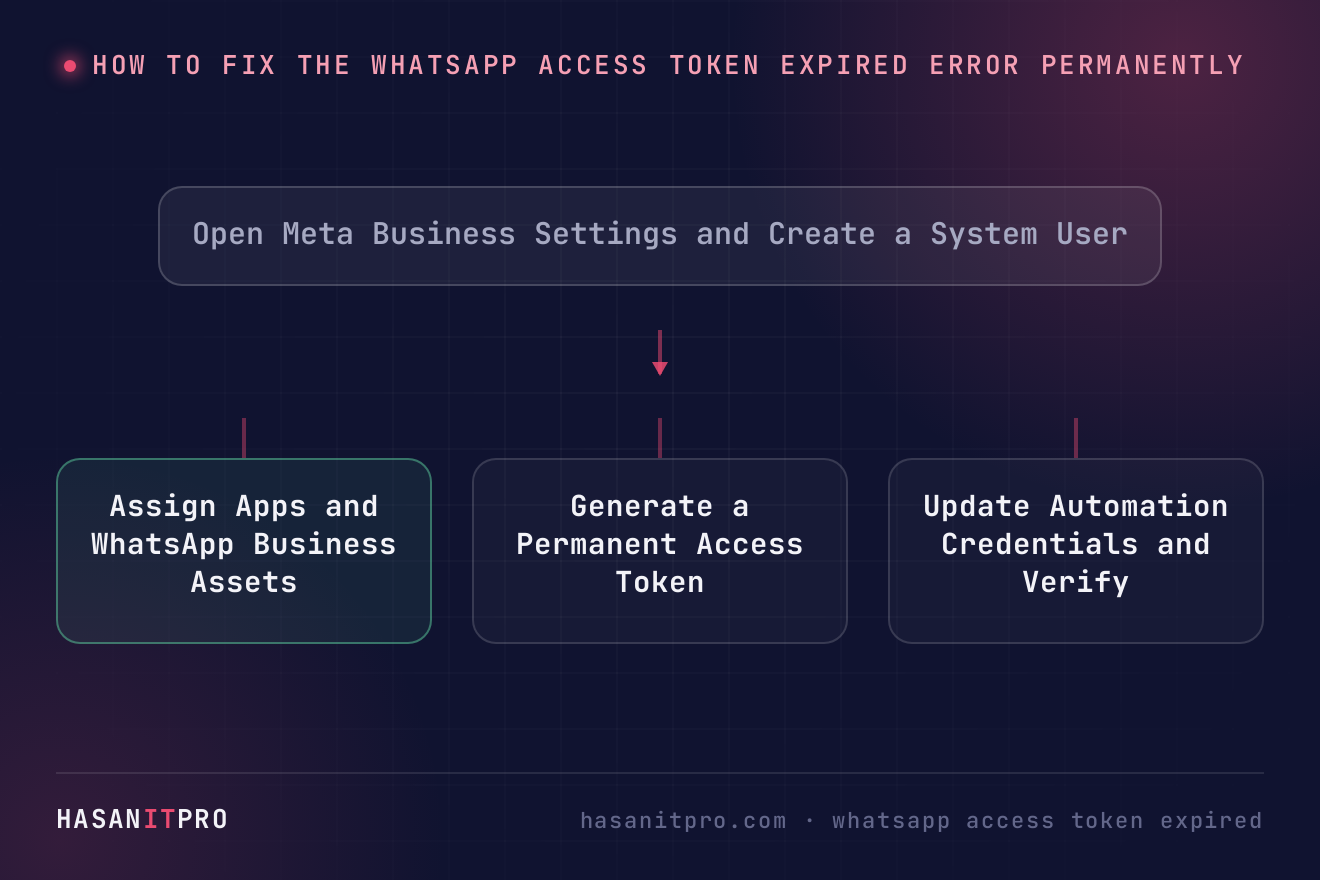
Why Your whatsapp access token expired in Meta Cloud API
Meta provides a temporary 24-hour access token when you set up a new app in Meta for Developers. This token exists purely to help developers test API calls quickly during initial setup. However, team members often copy this temporary token directly into production applications like n8n, Make, custom scripts, or GoHighLevel.
Exactly 24 hours later, Meta invalidates the token. Your API calls start failing with an OAuthException error (error code 190) carrying a message that the session has expired. This breaks lead response workflows, appointment reminders, and automated support bots.
Credential management failures are a frequent cause of enterprise automation failures. For instance, teams running n8n workflows often discover that a google credential needs to be reconnected after security refreshes or consent screen changes. Fixing credential drops across your technology stack requires moving away from short-lived developer sessions toward permanent, dedicated authentication credentials.
Step 1: Navigate to Meta Business Settings
To generate a token that never expires, you must work inside Meta Business Manager rather than the Meta for Developers portal. Log into your Meta Business Suite or Meta Business Manager account. Ensure you have admin privileges for the business account that owns your WhatsApp Business Account and Meta app.
In Meta Business Settings, locate the left sidebar menu. Expand the Users section and click on System Users. System Users are non-human accounts designed specifically to execute automated API tasks securely without tying operations to a personal Facebook account.
Step 2: Create a Dedicated System User
Click the Add button in the System Users pane. Enter a clear name for your new system account, such as “WhatsApp API Production”. Assign the system user role. You can choose either Employee or Admin.
Selecting Admin status is recommended if this account needs to manage multiple assets automatically. If your organization maintains strict security policies, select Employee role. Remember that you will need to manually delegate precise access permissions to every required asset later.
Step 3: Assign Assets to the System User
After creating the System User, select its name in the list and click the Add Assets button. A pop-up menu will display all business assets owned by your organization.
First, select Apps from the asset menu. Select your WhatsApp application and toggle on full control permissions. Next, navigate to WhatsApp Business Accounts within the same dialog. Choose the specific WhatsApp Business account associated with your active phone number. Enable full management control for the system user. Click Save Changes.
Skipping asset assignment is the most common reason permanent tokens fail. If you generate a token without assigning assets, the token will be valid, but Meta will block every API call with insufficient permission errors.
Step 4: Generate the Permanent Access Token
With assets assigned, click the Generate Token button next to your System User profile. In the modal window, select the Meta app you assigned in Step 3.
Under the token expiration dropdown, choose Never. Next, scroll down to the permission list. You must check three critical permissions for WhatsApp Cloud API operations:
business_management: Grants the token access to manage business assets, including the app and WhatsApp Business Account you assigned in Step 3.whatsapp_business_messaging: Grants authority to send outbound template messages and session messages.whatsapp_business_management: Allows your system to read phone number status, business profiles, and message templates.
Click Generate Token. Meta will display a long alphanumeric token string. Copy this string immediately and save it in your secret manager or secure password vault. Meta does not store this token string in plain text, meaning you cannot view it again after closing the window.
Step 5: Replace the Old Token and Test Your Integration
Now open your automation tool or API configuration file. Delete the temporary token and paste your new permanent system user token. Test your integration by triggering an outbound template message or checking your webhook health status.
To verify API endpoints and payload structures, refer to the official Meta Cloud API Developer Documentation. Standardizing your API authentication prevents downtime and ensures your customer communication channels stay open 24/7.
If you ever experience a situation where a whatsapp access token expired error appears again, check your System User asset permissions in Meta Business Manager. While permanent tokens do not expire based on time, revoking system user permissions or removing the user from the business account will instantly invalidate the token string.
Related reading: want to see a permanent token running in a real workflow? See how to build a WhatsApp sales agent with n8n and Groq.
-
1
Open Meta Business Settings and Create a System User
Log into Meta Business Manager as an admin. Navigate to Business Settings > Users > System Users. Click Add, enter a system user name, and assign the Admin or Employee role.
-
2
Assign Apps and WhatsApp Business Assets
Select the new System User and click Add Assets. Assign your Meta app with full control, then assign your WhatsApp Business Account asset with full management permissions.
-
3
Generate a Permanent Access Token
Click Generate Token on the System User profile. Set the token expiration to Never. Check the whatsapp_business_messaging and whatsapp_business_management permissions, then copy and save the generated token.
-
4
Update Automation Credentials and Verify
Replace the expired 24-hour token in your CRM or automation engine (such as n8n or Make) with the permanent system user token. Run a test message to confirm connectivity.
Does this sound like your business?