How to Build Invoice Follow Up Automation With n8n and Groq
Most small businesses chase late invoices by hand, on the days they remember, in whatever tone they happen to feel like. Some clients wait weeks for a nudge while others get the same reminder twice, and nobody keeps a record of who was told what. I built a real workflow that checks a Google Sheet every morning, works out how overdue each unpaid invoice is, and sends the right reminder for that stage, once, using only the real invoice details. It was tested with real sends through a live mail server, not simulated data.
Does this sound like your business?
- Every overdue invoice gets a reminder matched to how late it actually is
- A stage is never sent twice, so no client gets the same reminder again
- Drafts use only real invoice fields and never mention late fees or legal action
- A safe template takes over if a draft fails the check or the AI call fails
- Every reminder is logged, and any failed step sends an alert instead of failing silently
Chasing unpaid invoices by hand never feels urgent until the cash runs short. This invoice follow up automation checks a simple Google Sheet every morning, finds the invoices that are genuinely overdue, and sends each client the right reminder for how late they are: a friendly nudge first, a more direct note a week later, and a firm final reminder after two weeks. Nobody gets the same stage twice, and nothing goes out that the invoice data does not support. I built it and ran it for real, sending reminders through a live mail server to a test inbox. The real, tested workflow file is free to download near the bottom of this page.
Who Is This For
This build is for freelancers, tradies, and small agencies who send invoices themselves and chase late payers from their own inbox, whenever they happen to remember.
What Problem Does This Workflow Solve
- Chasing Is Inconsistent: A late invoice only gets a nudge on the days you remember, so some clients wait weeks and others get nagged.
- The Tone Is Hard to Get Right: Too soft gets ignored, too harsh damages a client relationship you wanted to keep.
- Nobody Tracks Who Got What: Without a record of the last reminder sent, it is easy to email the same client twice for the same thing.
How to Build Invoice Follow Up Automation With n8n and Groq
A daily Schedule Trigger reads an Invoices tab in Google Sheets. A Code node keeps only the invoices that are unpaid, past due, and have not already had this reminder stage sent. Groq drafts each email from the real invoice fields only, a QA check reviews the draft, and the reminder goes out through your normal SMTP mail account. The invoice is then marked as reminded and the send is logged, so the same stage can never go out twice. If you want the wider picture first, see my guide on automating invoice follow-ups for tradies, and the similar pattern behind my automated quote follow-up build.

Three Stages, Never Repeated
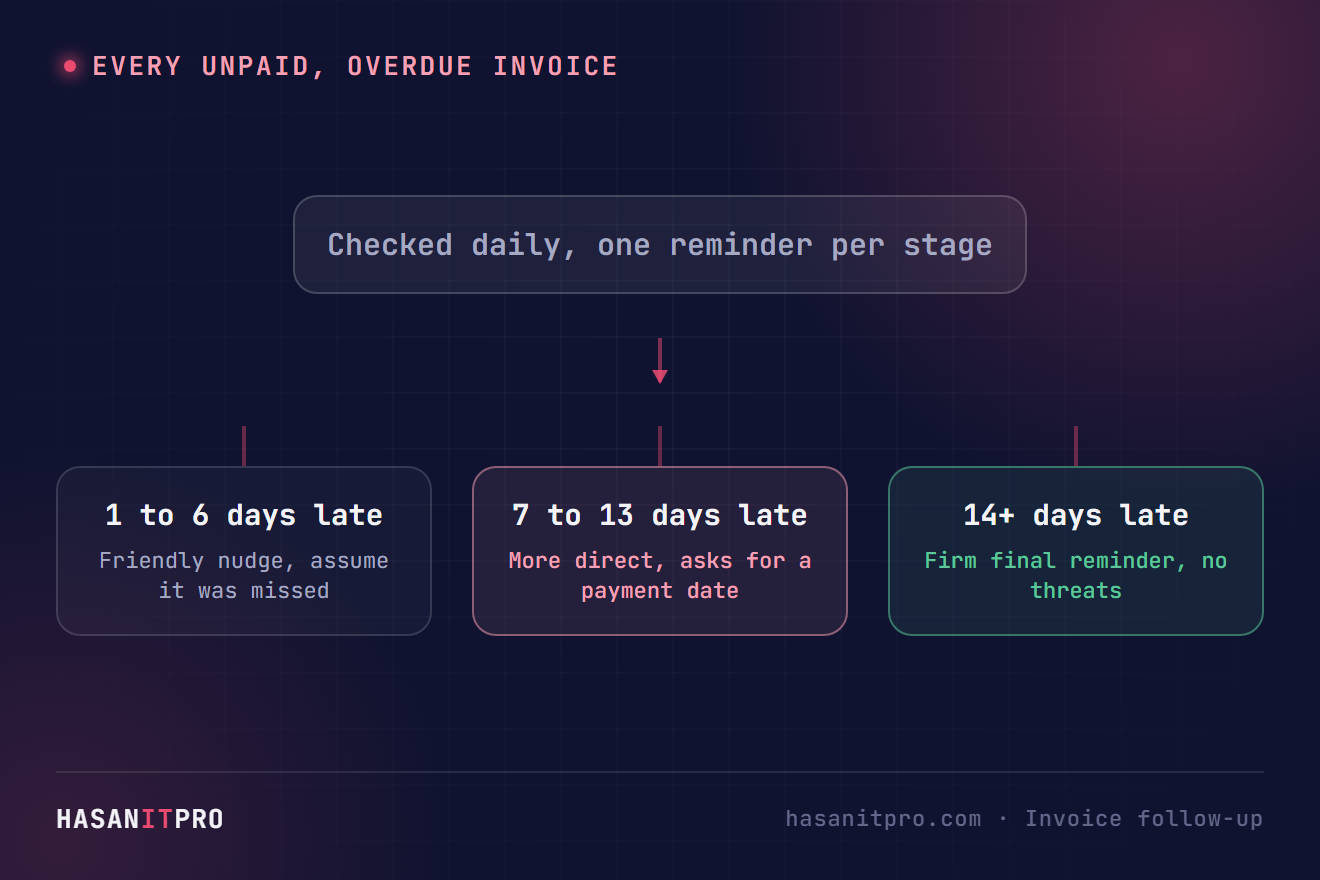
How late an invoice is decides which reminder it gets: 1 to 6 days overdue is stage one, 7 to 13 days is stage two, and 14 or more is stage three. The sheet stores the last stage sent for each invoice, and a reminder only goes out if the new stage is higher than that. In testing, an invoice 20 days overdue that had already had stage one went straight to the stage three reminder rather than back-filling stage two. Paid invoices, invoices not yet due, and invoices already reminded at the current stage are skipped entirely.
Guardrails So an Awkward Email Never Goes Out
Groq only sees the client’s first name, the invoice number, the amount, the due date, the days overdue, and an optional payment link. The prompt forbids mentioning late fees, interest, legal action, or collections. Every draft is then checked for banned filler words and risky wording, and must contain the exact invoice number and amount. If a draft fails, or the Groq call itself fails, a plain fixed template is sent instead. I tested that on purpose by pointing the Groq node at a dead URL: the reminder still went out, from the template.
Two Real Bugs the First Test Runs Caught
I seeded six sample invoices covering every case: three overdue at different levels, one paid, one not yet due, and one already reminded. The first run picked the right three, but only one email went out. Code nodes default to running once for all items, so the drafting steps only ever saw the first invoice. Switching every per-invoice Code node to run once for each item fixed it. The second run sent all three emails and marked all three invoices, but the log tab showed a single row. The three back-to-back appends each wrote to the same row and overwrote each other. Spacing the log writes out with the node’s batching option, one item per batch a second apart, fixed that too. Neither problem shows up with a single invoice, so test with several.
Setup Guide
Prerequisites
- A free Groq API key (the openai/gpt-oss-120b model, an OpenAI-compatible API)
- A Google account with Sheets access, connected through OAuth or a service account
- An SMTP email credential for the address you invoice from
- A hosted instance of n8n, cloud or self-hosted
Setup Steps
- Download the workflow file near the bottom of this page and import it into your n8n instance.
- Connect your credentials for Groq, Google Sheets, and your SMTP account.
- Create the Invoices tab with these columns: invoice_id, client_name, client_email, amount, due_date (YYYY-MM-DD), status, last_reminder_stage, last_reminder_date, payment_link.
- Create the Invoice Reminder Log tab with these columns: timestamp, invoice_id, client_name, client_email, stage, days_overdue, subject, draft_source.
- Point the Sheets nodes at your own spreadsheet.
- Test with your own inbox as the client_email on a few sample invoices, then run the workflow manually.
- Check the sheet and the log to confirm every eligible invoice was marked and logged exactly once.
- Replace the sample rows with your real invoices and activate the workflow. It is exported inactive on purpose.
Set status to exactly unpaid for anything you want chased, and change it to paid by hand once the money lands.
How to Customize This Workflow
- Change the stage thresholds in the picking Code node to match your own payment terms, or add a fourth stage.
- Swap Google Sheets for your accounting tool or Airtable, and let the paid status update itself.
- Add a human approval step before sending. n8n’s Send and Wait for Response operation can ask a person to approve a message first.
- Send on another channel such as WhatsApp for clients who never read email.
One known simplification: due dates are compared as plain days in UTC, so an invoice can tip over at a slightly different hour than your local midnight.
Related reading: Another scheduled workflow, this one watching for unanswered leads: see how to build a speed to lead alert system with n8n and Groq.
Need Help Customizing?
Connect with me on LinkedIn, or find more real builds on YouTube, Facebook, and Instagram.
Read the nine steps in full below, or download the real, tested workflow file to import directly into your own n8n and stop chasing invoices by hand.
-
1
Keep Invoices in a Sheet the Workflow Can Read
An Invoices tab holds one row per invoice: invoice_id, client_name, client_email, amount, due_date, status, last_reminder_stage, last_reminder_date, and an optional payment_link. The sheet is the single source of truth for what is owed and what has already been sent.
-
2
Run It Every Morning on a Schedule
A Schedule Trigger fires daily at 9am, and a Manual Trigger feeds the same first step so the whole workflow can be tested on demand without waiting for the clock.
-
3
Pick Only the Invoices That Need a Reminder
A Code node keeps invoices that are unpaid, past due, and whose reminder stage (1 to 6 days late, 7 to 13, 14 or more) is higher than the last stage already sent. Paid, not-yet-due, and already-reminded invoices are skipped.
-
4
Draft Each Reminder With Groq From Real Invoice Facts Only
One Groq call per invoice writes the subject and body from just the client's first name, invoice number, amount, due date, days overdue, and payment link, in a tone matched to the stage. The prompt forbids late fees, interest, legal action, and collections.
-
5
QA-Lint Every Draft and Fall Back to a Safe Template
Each draft is checked for banned filler words, risky wording, and the presence of the exact invoice number and amount. A failed check, or a failed Groq call, swaps in a plain fixed template so a correct reminder still goes out.
-
6
Send the Reminder Through Your Own Mail Account
The Send Email node delivers the reminder to the client over SMTP from your normal invoicing address.
-
7
Mark the Invoice as Reminded
Right after a successful send, the invoice's last_reminder_stage and last_reminder_date are written back to its row, which is what stops the same stage from ever going out twice.
-
8
Log Every Reminder, Spaced Out to Avoid Overwrites
Each reminder is appended to an Invoice Reminder Log tab with the stage, days overdue, subject, and whether the AI draft or the fallback was used. The append node uses batching, one item per batch a second apart, because back-to-back appends overwrote each other in testing.
-
9
Alert on Any Failed Step
If the send, the sheet update, or the log write fails, an alert email goes to you explaining which step broke, and whether the invoice will be retried on the next run or needs to be marked as reminded by hand to avoid a duplicate.
This is the real, tested n8n workflow from this tutorial, not a mockup. Tell me where to send it and it'll land in your inbox as a ready-to-import .json file.
Does this sound like your business?