How to Automate Client Onboarding From Payment to Kickoff Meeting
To automate client onboarding, connect your payment processor to your automation tool using webhooks. Automatically create client project folders, send a pre-filled intake questionnaire, and redirect the client to an automated booking link for the kickoff meeting upon payment receipt.
Does this sound like your business?
When a new client pays their invoice, your team should celebrate, not scramble. Manual handoffs create delay, lost intake data, and poor first impressions. When you automate client onboarding, you turn payment confirmation into an instant, hands-off workflow. A well-built onboarding sequence creates client folders, sends intake forms, updates your CRM, and schedules the kickoff meeting without a single manual email. In this guide, we will build a reliable setup from payment trigger to calendar invite.
Why You Should Automate Client Onboarding
Manual onboarding leads to inconsistent client experiences. Team members forget to send intake questionnaires or create Google Drive folders late. This creates confusion before work even starts.
Automating this process fixes three common problems:
- Delayed kickoffs: Clients wait hours or days for next steps after paying.
- Missing information: Intake forms are missed or filled out late.
- Internal friction: Project managers do not know a deal closed until someone manually messages them.
By using tool orchestration software like Zapier, Make, or n8n, you connect your payment processor directly to your project management suite and scheduling tool. If you are deciding which platform fits your backend best, read our guide on n8n vs Zapier vs Make.
How to Automate Client Onboarding in 4 Practical Steps
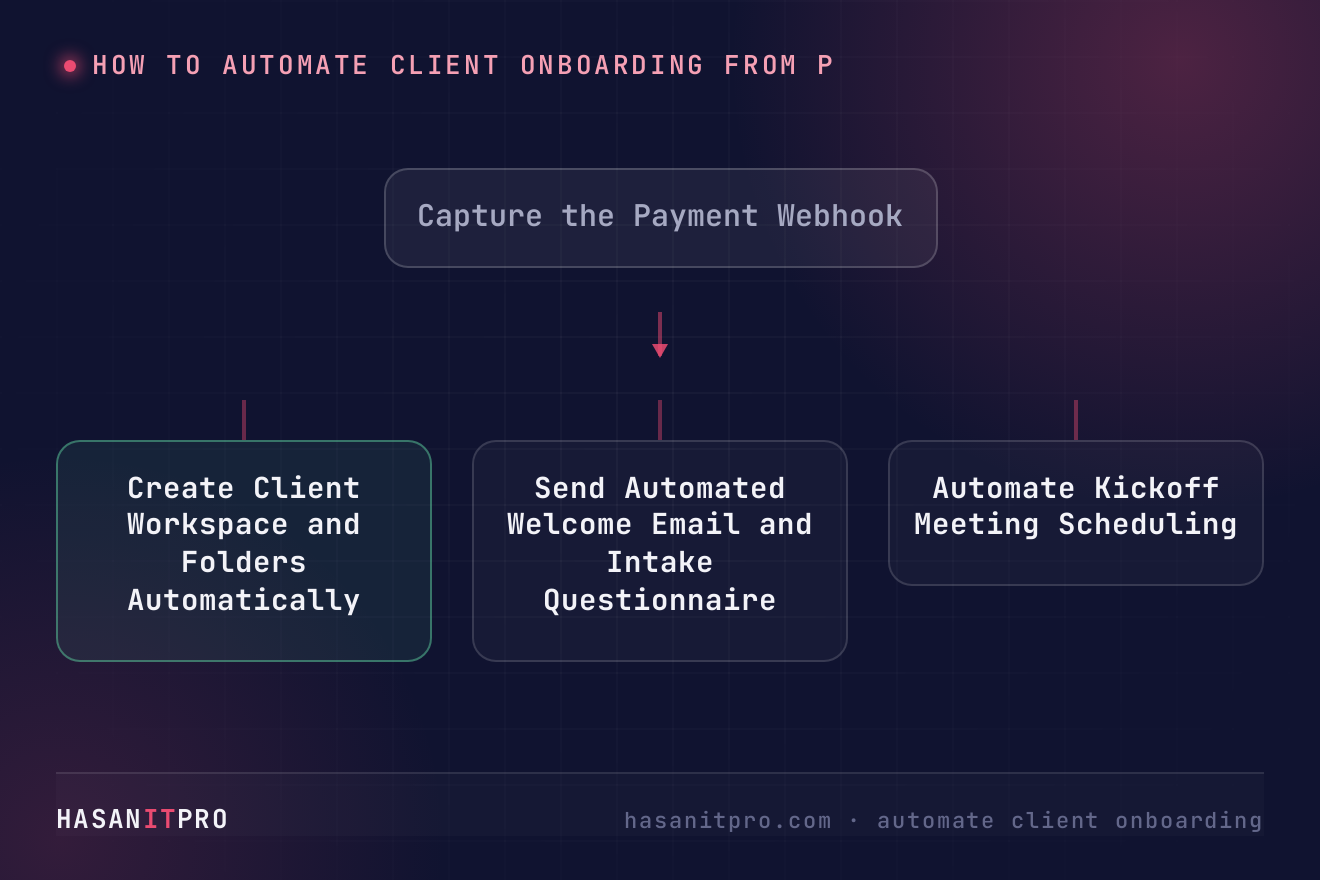
Step 1: Capture the Payment Webhook
Start with your payment platform. Whether you use Stripe, QuickBooks, or HubSpot Payments, payment platforms send real-time event notifications called webhooks when an invoice status changes to paid. You can review official setup details in the Stripe webhooks documentation.
Set your workflow tool to trigger immediately upon receiving the invoice payment event. Extract essential customer data from the payload, including name, email address, company name, and purchased service tier.
Step 2: Create Client Workspace and Folders Automatically
Once payment is verified, your workflow engine should instantly create a centralized record. Generate a dedicated Google Drive or Dropbox folder structure with subfolders for contracts, deliverables, and client assets.
Simultaneously, create a new project in your project management tool, such as Asana, ClickUp, or Notion. Apply a standardized onboarding template that pre-populates default tasks, assignees, and deadlines based on the contract start date.
Step 3: Send the Automated Welcome Email and Intake Questionnaire
Never send a plain, unformatted email confirmation. Send a personalized welcome email within 60 seconds of payment receipt.
Include two critical items in this email:
- A personalized link to your digital intake form pre-filled with their company details.
- Clear expectations on what happens next.
Store form responses directly in your CRM or database so your fulfillment team has immediate access to client requirements.
Step 4: Automate the Kickoff Meeting Scheduling
The final step is getting the kickoff call on the calendar. Integrate your scheduling software, such as Calendly or SavvyCal, directly into the onboarding sequence.
You can redirect the client directly to your booking page upon intake form submission or include the booking link inside the welcome email. Configure your booking tool to require completed intake questions before a call slot can be selected. When the client selects a time, automatically generate a Zoom or Google Meet link, add all team stakeholders, and post a notification to your internal Slack or Microsoft Teams channel.
Best Practices for Maintaining Automation Quality
Automation should save time without feeling cold or robotic. Keep these practices in mind as you build:
- Use clear fallback error handling so failed webhooks alert your team on Slack immediately.
- Maintain personalized language in your email templates.
- Test the full loop using test credit card numbers before pushing live.
When you automate client onboarding thoughtfully, your clients feel guided from second one, and your team spends energy on delivery rather than administration.
-
1
Capture the Payment Webhook
Configure your payment platform (such as Stripe) to send a webhook notification when an invoice is marked paid. Capture customer name, email address, company name, and purchased service.
-
2
Create Client Workspace and Folders Automatically
Set up your workflow engine to generate a structured Google Drive folder and create a project from a pre-made template in Asana or ClickUp.
-
3
Send Automated Welcome Email and Intake Questionnaire
Trigger an automated welcome email containing a link to a digital intake form to collect project details immediately after payment.
-
4
Automate Kickoff Meeting Scheduling
Redirect the client upon intake form completion to a Calendly booking link that assigns team members, generates a video meeting URL, and notifies Slack.
Does this sound like your business?