How to sync offline conversions google ads n8n Workflows
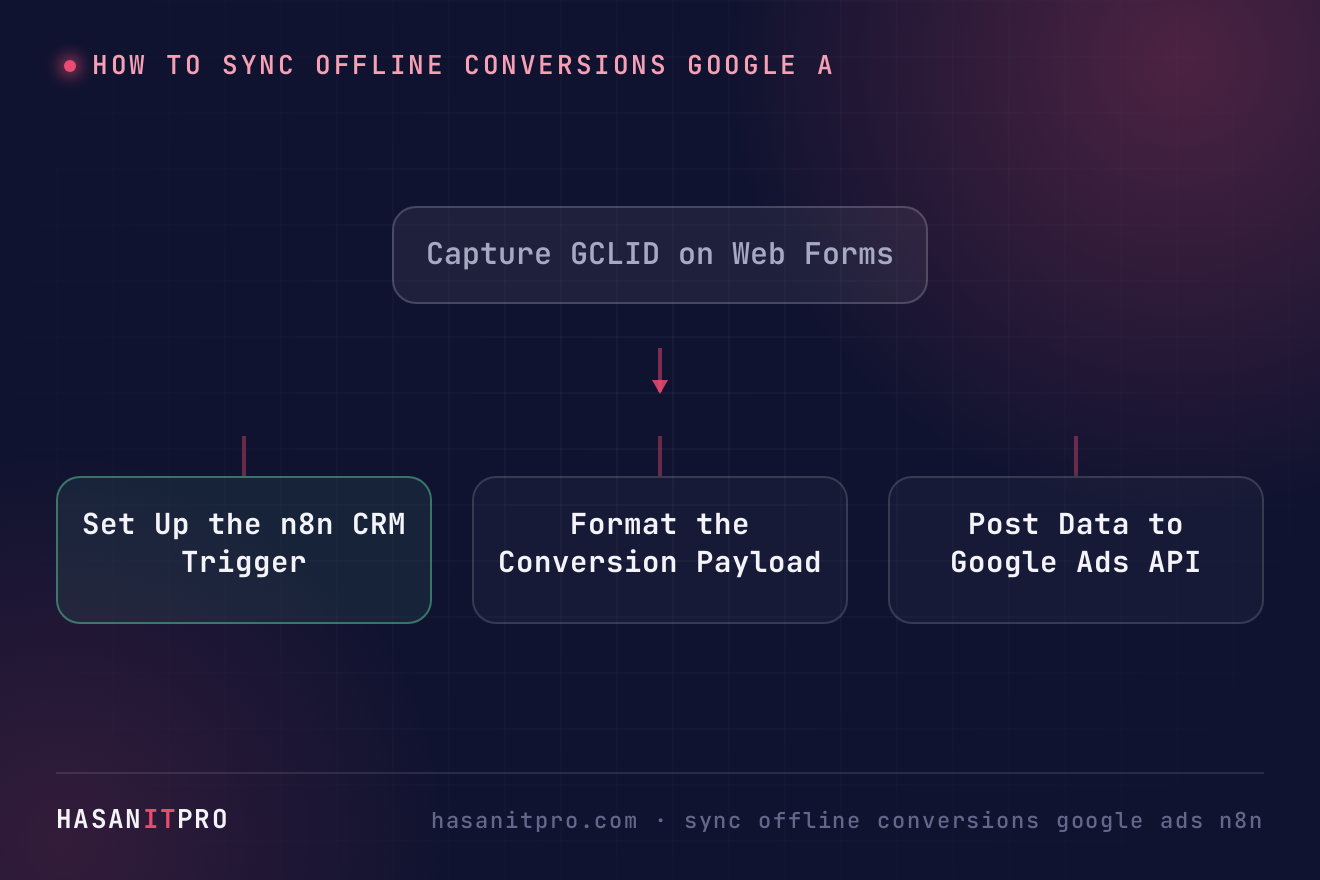
To sync offline conversions from your CRM to Google Ads with n8n, capture the GCLID parameter on your website lead form and store it in your CRM. Then, trigger an n8n workflow whenever a deal reaches Closed Won status. Finally, format the deal value, conversion time, and GCLID into a payload and send it to the Google Ads API using OAuth2 authentication.
Does this sound like your business?
When a prospective customer clicks your paid search ad, they might fill out a web form immediately. However, the actual purchase often happens offline weeks later inside your sales CRM. If you do not report that sale back to Google, your campaigns will keep optimizing for low-quality form fills instead of real revenue. In this guide, you will learn how to sync offline conversions google ads n8n workflows directly from your CRM. By sending closed-won deal data back to Google Ads, you feed real revenue signals into your bidding strategies and lower your customer acquisition costs.
When someone clicks an ad, Google attaches a unique click identifier known as a GCLID (Google Click Identifier) to the URL. If your website forms capture this GCLID and save it alongside the contact in your CRM, you hold the exact key needed to tie a closed deal back to the original ad click. Most teams try doing this manually by downloading monthly CSV files from HubSpot, Salesforce, or Pipedrive and uploading them to Google Ads. That manual work is slow, error-prone, and delays data feedback.
Automating this loop with n8n removes the manual work entirely. When a deal status changes to Closed Won in your CRM, an n8n workflow triggers immediately, formats the conversion data, and sends it directly to the Google Ads API.
Why You Need Offline Conversion Syncing
Google Smart Bidding relies heavily on feedback loops. If Google Ads only sees initial lead capture forms, it prioritizes keywords and audiences that generate volume rather than sales value. A lead form might cost $20, but if none of those leads ever buy, you are wasting ad budget. Conversely, a high-intent keyword might cost $100 per lead but convert into $5,000 deals at a high rate.
By passing exact revenue figures and conversion timestamps back to Google Ads, Smart Bidding shifts budget toward high-value search terms. We discuss a similar attribution strategy in our guide on how we reconcile ad spend with CRM data, where matching sales records with ad spend reveals true campaign return on investment.
Step-by-Step: How to sync offline conversions google ads n8n
To set up an automated pipeline, you need three core elements: GCLID capture on your web forms, CRM deal tracking, and an n8n instance configured to communicate with the Google Ads API.
1. Capture and Store the GCLID
Add a hidden field to your website lead forms named gclid. Use a simple JavaScript script on your website to parse the URL parameters when a visitor arrives from a Google Ad. Store that parameter in a browser cookie or local storage. When the user fills out your contact or quote form, pass the GCLID value into a custom property inside your CRM lead record.
2. Configure the n8n Trigger Node
In n8n, create a new workflow starting with a CRM webhook trigger or a scheduled trigger. If your CRM supports webhooks (such as HubSpot, Salesforce, or ActiveCampaign), set the webhook to fire whenever a deal moves to the Closed Won stage. If you prefer batching, set an n8n schedule node to check for newly closed deals once every hour.
3. Format the Conversion Payload
Google Ads requires specific data fields for offline conversion uploads. Your n8n workflow must format the CRM data into the required JSON payload. The key fields include:
- Conversion Action Name: The exact name of the conversion action created in your Google Ads account.
- GCLID: The Google Click ID captured during initial lead submission.
- Conversion Time: The date and time the deal closed, formatted in ISO 8601 or Google Ads format (for example,
yyyy-mm-dd hh:mm:ss+zz:zz). - Conversion Value: The deal monetary value from your CRM.
- Currency Code: The three-letter currency code, such as USD or EUR.
4. Send Data to Google Ads via API
Use the Google Ads API node in n8n or an HTTP Request node to call the upload conversion endpoint. According to the official Google Ads API documentation on offline conversions, requests must be submitted using authorized OAuth2 credentials. Once authenticated, n8n sends the formatted JSON payload directly to Google.
Once you build a process to sync offline conversions google ads n8n nodes will process every closed deal automatically without manual CSV uploads. This ensures your ad platform gets conversion signals within hours of a closed sale.
Best Practices and Troubleshooting
Keep these critical rules in mind to keep your conversion pipeline running smoothly:
- Respect the Upload Window: Google Ads only accepts offline conversion uploads for clicks that occurred within the last 90 days. Converted sales older than 90 days will be rejected.
- Wait Before Uploading: Google recommends waiting at least 4 to 6 hours after the ad click occurs before uploading the conversion. Since offline sales usually take days or weeks to close, this restriction is rarely an issue for B2B or service businesses.
- Handle Missing GCLIDs: Not every lead comes from paid search. Add an n8n Filter node to drop records where the GCLID field is empty before making API calls to Google.
- Monitor Error Logs: Set up an error workflow in n8n to alert your team via Slack or email if an API call fails due to expired tokens or invalid date formats.
-
1
Capture GCLID on Web Forms
Add a hidden form field on your website to store the GCLID parameter from Google Ad clicks, saving it into a custom field in your CRM.
-
2
Set Up the n8n CRM Trigger
Create an n8n workflow using a Webhook node or Schedule node that triggers whenever a deal status changes to Closed Won in your CRM.
-
3
Format the Conversion Payload
Use an n8n Code or Edit Fields node to structure the conversion payload with the GCLID, conversion action name, deal value, currency, and timestamp.
-
4
Post Data to Google Ads API
Send the structured conversion payload to the Google Ads API using OAuth2 credentials to complete the offline conversion upload.
Does this sound like your business?